WidgetKit and Live Activities: what they are and when to ship them
WidgetKit covers widgets, controls and Live Activities, but only Live Activities run on ActivityKit, skip timelines and drop network and location access.

What WidgetKit and Live Activities actually are
WidgetKit is the umbrella framework, and Live Activities are just one piece of it. Under that one umbrella you get widgets, watch complications, controls, and Live Activities, and all four share a single widget extension target and the same SwiftUI view code. That shared foundation is why Apple recommends you plan all four together, even if you only intend to ship one of them first, the same approach the team behind shipping SwiftUI apps with confidence already takes to broader SwiftUI adoption decisions.
Widgets are the general-purpose member of the family. You reach for one to surface persistent, glanceable content: a weather summary on the Home Screen, a stock price on the Lock Screen, a shortcut in Today View or the Smart Stack. They stick around because what they show stays relevant all day, not just for the length of one task.
Live Activities are narrower. They run on ActivityKit, a framework Apple shipped alongside iOS and iPadOS 16.1 in October 2022, and ActivityKit does one job: start, update, and end a single Live Activity tied to one bounded event. A delivery. A ride. A game. A flight. It shows up on the Lock Screen, in the Dynamic Island, in the Smart Stack on Apple Watch, in the Mac menu bar, and on the Home Screen in CarPlay. Both widgets and Live Activities render through the same WidgetKit extension, but the update model underneath them is completely different, and that difference is the real reason you can't treat them as interchangeable. If you're weighing one against the other for a new iOS development feature, start with that update model rather than the UI. You'll get to the right answer faster.
The two also age differently on screen. A widget's job is to look right in every context it lands in: full color on the Home Screen, a tinted accent color on newer versions of iOS, a vibrant, blurred appearance on the Lock Screen and in StandBy. A Live Activity has fewer contexts to cover, but each one, the minimal presentation, the compact and expanded Dynamic Island states, the Lock Screen banner, has to read correctly at a glance while the event it represents is still happening. Get one context wrong and you're looking at rework late in the build. That's exactly why Apple's own guidance is to plan every appearance up front instead of adding them one at a time.
Constraints that should decide the call
Two constraints settle most of these decisions before design even starts.
The first is access. Live Activities have no network access and no location access, full stop. Ordinary widgets and watch complications have both. If your feature needs the widget process itself to make a fresh network call or read the device's location, a Live Activity is architecturally the wrong tool, no matter how well it otherwise fits the use case. Any live data a Live Activity shows has to arrive through your host app while it's running, or through a push notification you send from a server.
The second is platform reach. Live Activities don't exist on visionOS. A start request from an otherwise-compatible iPhone or iPad app just fails there, no error message that helps you, it simply doesn't happen. Ordinary widgets, by contrast, render on Apple Vision Pro as pinned three-dimensional objects. Catch that gap in planning, not in App Store review, the same category of late surprise covered in App Store rejection reasons for 2026.
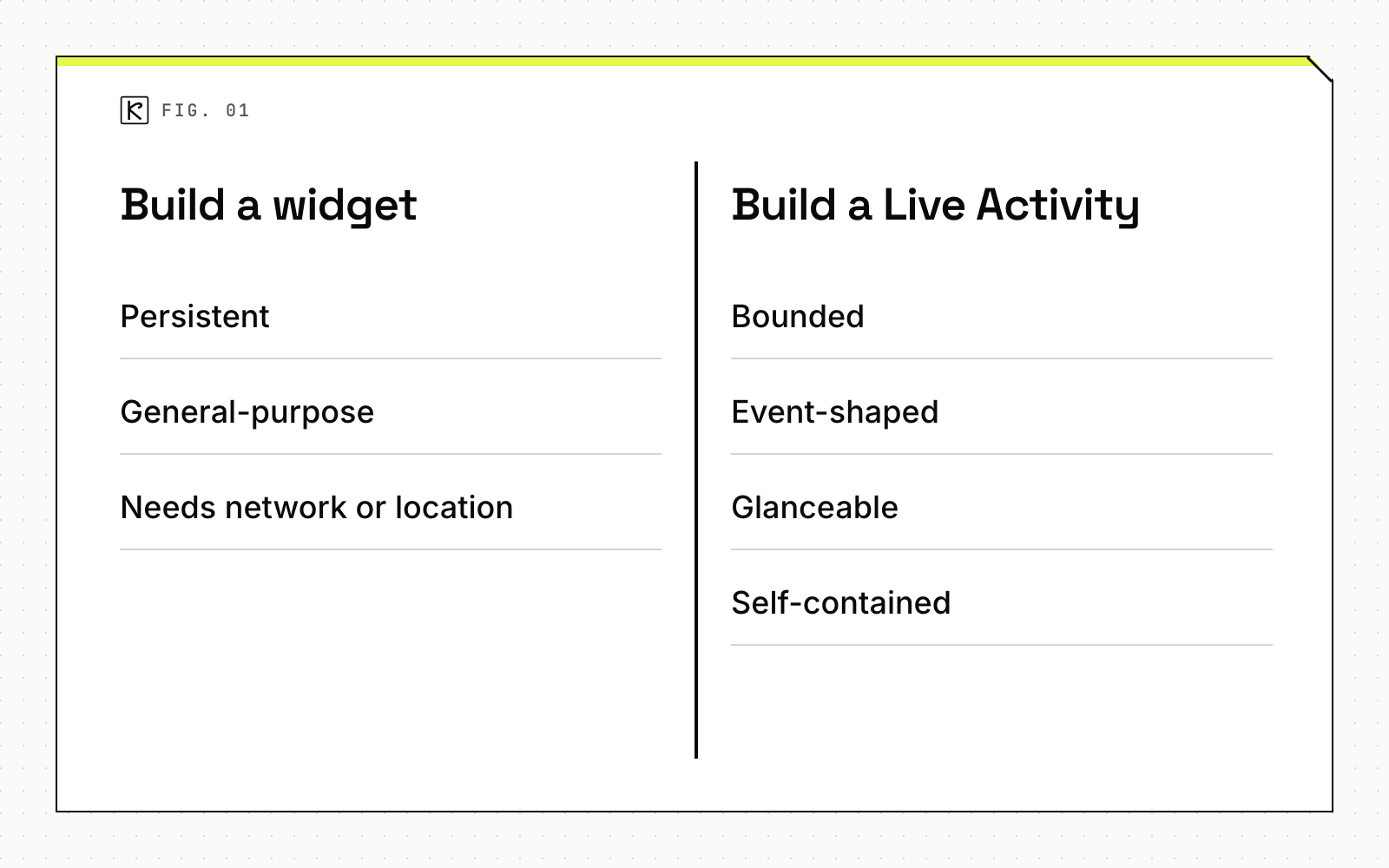
Put the two together and the decision comes down to shape and access, not preference:
- Persistent, general-purpose, needs network or location: build a widget.
- Bounded, event-shaped, glanceable for a few hours, self-contained: build a Live Activity.
Update mechanics: timelines vs. ActivityKit push
Widgets run on a timeline. You hand WidgetKit a schedule of future states, and the system renders it on an energy-efficient, budgeted cadence, with WidgetKit push notifications available as a supplement when your data changes unpredictably.
Live Activities skip timelines entirely. Every update comes through ActivityKit: from your app while it's in the foreground, or from a server via an ActivityKit push notification sent through APNs, including a push-to-start token that can launch a brand-new Live Activity remotely. Want to start one by push, not just update or end one that's already running? You'll need iOS or iPadOS 18. On iOS and iPadOS 17.1 and earlier, a remote push can update or end an existing Live Activity but can't start one. Check that version floor early, especially on a codebase that's already sequencing framework adoption carefully, the kind of planning covered in the Swift 6 strict concurrency migration guide.
Update frequency has a budget too. A default-priority ActivityKit push notification counts against an hourly system allowance, and once that allowance runs out, the system can throttle you. Drop the priority and it stops counting against the budget, which is why Apple recommends the lower setting as the default for anything that doesn't need someone's immediate attention. Need frequent updates, like tracking a live sports match minute by minute? You'll have to opt in explicitly with a dedicated entitlement, and the person using your app can still turn that back off in Settings whenever they want.
A few lifecycle details are easy to miss until an activity is already live in front of real users. A stale date flags an activity your app hasn't been able to update, say after a network drop, so the interface can tell someone the information may be out of date instead of quietly showing something wrong. An ended activity stays visible on the Lock Screen for up to four hours by default, though a custom dismissal date in the ending payload can shorten that window or clear it immediately. And if more than one of your Live Activities is running at once, a relevance score decides which one gets the single Dynamic Island slot and the top spot on the Lock Screen.
None of this needs memorizing before you write a line of code. It needs checking against the feature in front of you: what data it needs, which iOS versions it has to support, how often it realistically has to update. Answer those three first, and the choice between a widget and a Live Activity mostly makes itself. Kallos Labs treats that scoping step as part of the estimate on every SwiftUI engagement, not an afterthought once the build is already underway.
Frequently asked questions
Do I need a Live Activity, or is a widget enough?
Reach for a widget when the information is persistent and general, like a weather summary or a stock price someone checks throughout the day. Reach for a Live Activity when there's a specific task or event with a clear start and end, and the person wants live updates without opening the app: a delivery, a game, a flight.
What iOS version do I need to support Live Activities?
ActivityKit, the framework behind Live Activities, requires iOS or iPadOS 16.1 or later. If your update plan relies on starting a Live Activity remotely from a push notification rather than from inside the app, iOS or iPadOS 18 is the practical floor, since 17.1 and earlier can only update or end an already-running activity by push, not start one.
Can a Live Activity read the user's location or make a network call directly?
No. Live Activities have no network access and no location access at all, unlike ordinary widgets and watch complications, which have both. Any live data has to reach the Live Activity through the app itself or through an ActivityKit push notification sent from a server.
How often can a Live Activity update?
ActivityKit push notifications draw from an hourly system budget, and updates sent at the default priority count against it. Apps that need frequent updates, such as tracking a live sports match minute by minute, have to opt in with a dedicated entitlement, and the person using the app can still turn that off in Settings.