How to measure SEO results with GA4 and Search Console
Link GA4 and Search Console, publish the report collection, and build a monthly SEO report from clicks, impressions, CTR, position and engaged sessions.

Link your GA4 property to Search Console, publish the Search Console reports inside GA4, and report on two things together: how people found you (clicks, impressions, CTR, position) and what they did next (engaged sessions, key events). Search Console covers the first half. GA4 covers the second. Neither tells you alone whether SEO is working.
This guide covers the setup, the two GA4 reports worth reading, and a monthly report you can reuse. The rules come from Google's own help pages, current as of October 2026.
What each tool measures
Search Console measures visibility on Google. Its Performance report defines clicks as the number of times a user clicked through to your site from Google Search results, and impressions as how many times your site appeared in those results. Click-through rate (CTR) is clicks divided by impressions. Average position is the position of the topmost result from your site.
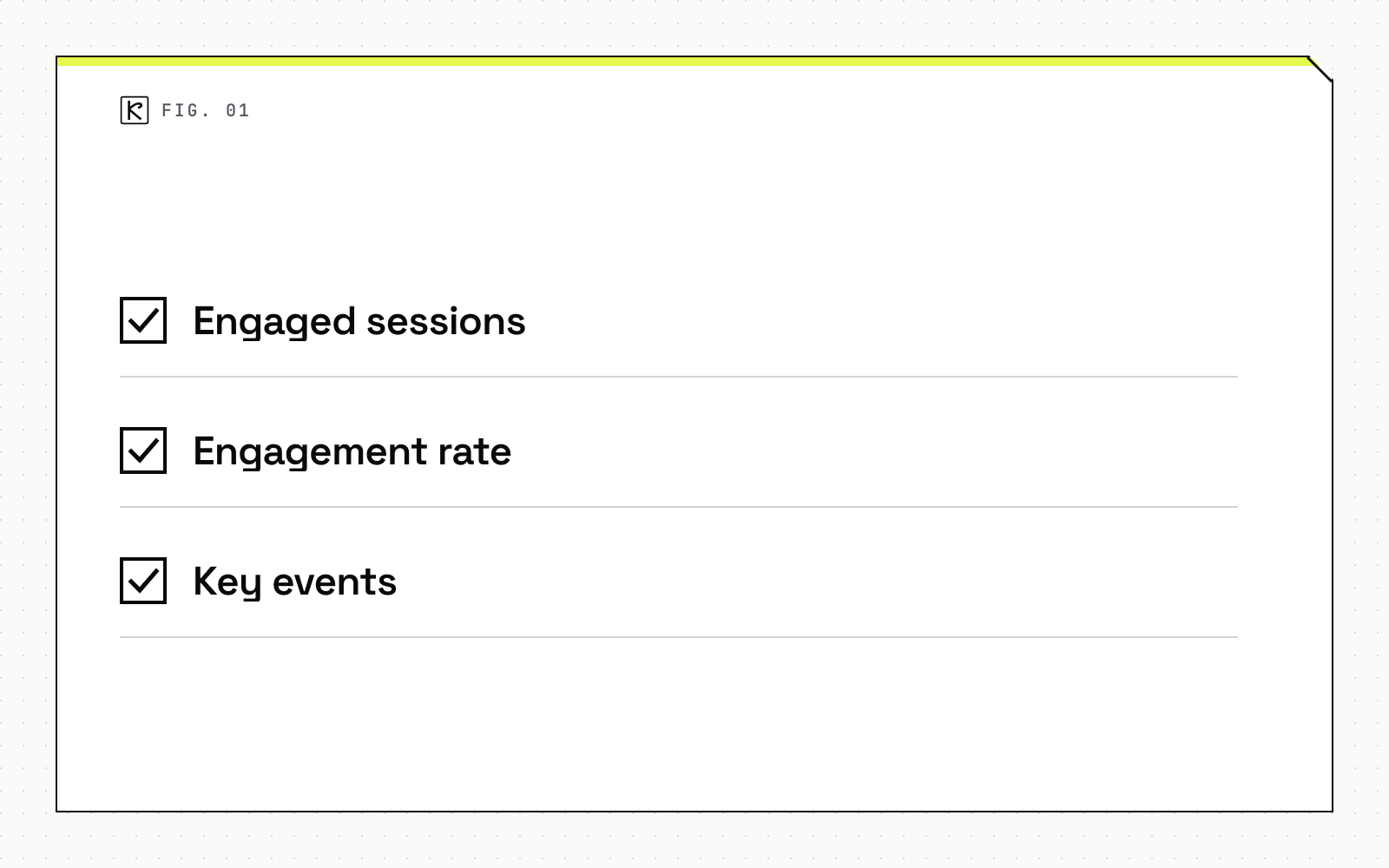
GA4 measures what happens after the click. Three of its metrics matter for SEO reporting:
- Engaged sessions: sessions that last 10 seconds or longer, include one or more key events, or include two or more page views.
- Engagement rate: engaged sessions divided by total sessions. Google describes it as the inverse of bounce rate.
- Key events: the number of times users triggered an event you marked as a key event, such as a form submission.
You need both. A page can gain impressions and clicks while visitors leave at once. A page can also convert well on a trickle of traffic. Only the combined view shows which case you are in.
None of this helps if Google has not indexed the page. If a new URL shows no impressions at all, start with getting pages indexed before you read any report.
Link GA4 and Search Console
The link itself is quick. The details below decide whether your data is complete.
Create the link
In GA4, open Admin, then Product links, then Search Console links, and start a new link. Choose the Search Console property and the web data stream that represents the same site. Google's help page says the Search Console reports use the web data stream you pick here. If you later delete the link and create a new one with a different stream, all date ranges switch to the new stream.
Check that both properties cover the same set of pages. A Search Console domain property that includes subdomains, linked to a GA4 stream for one hostname, produces numbers that never reconcile.
Publish the report collection
Linking alone shows nothing. The Search Console report collection is unpublished by default. Open Library in the left navigation, find the Search Console collection, and publish it. After that, the reports appear under Reports, then Search Console.
Know when the data starts
Setup order changes your start date. Per Google's documentation:
| Order of steps | Data starts |
|---|---|
| Verify the site in Search Console first, then create the web data stream | On the date the stream was created |
| Create the web data stream first, then verify the site | On the verification date |
Search Console data appears in GA4 about 48 hours after Search Console collects it. Search Console keeps 16 months of data, so the linked GA4 reports cover at most 16 months. Export older numbers if you want longer trends.
Read the two GA4 reports
Google organic search traffic report
Open this one first. It lists landing pages with Search Console metrics (organic Google search clicks, impressions, CTR and average position) next to GA4 metrics such as active users, engaged sessions, engagement rate, average engagement time and key events. You can break it down by country and device category.
Use it to answer page-level questions. Which landing pages get impressions but few clicks? Which get clicks but low engagement rate? Which convert? Each answer points to a different fix: a better title and snippet, a better match between the page and the query, or a clearer next step.
Editors and Administrators can add or remove metrics, so trim it to the columns your report needs.
Queries report
The Queries report shows the organic Google search query with clicks, impressions, CTR and average position, split by country and device category. There is a limit worth knowing: you can break it down by Search Console dimensions, but not by Analytics dimensions. It tells you which queries bring visibility. It does not tell you which queries produce key events.
For query-level conversion analysis, work from the landing page: find the page in the organic search traffic report, then check its queries in Search Console.
Build a monthly SEO report
Keep it short enough that someone reads it: one page, the same layout every month, one comparison period.
| Question | Metric | Where to read it |
|---|---|---|
| Are we visible? | Impressions, average position | Search Console Performance report |
| Do people choose us? | Clicks, CTR | Search Console, or the GA4 organic search traffic report |
| Do visitors stay? | Engaged sessions, engagement rate | GA4 organic search traffic report |
| Does it pay off? | Key events by landing page | GA4 organic search traffic report |
| What changed? | Top queries and pages, up or down | Search Console Queries and Pages tables |
A few habits keep the numbers honest:
- Compare like with like. Use the same month last year where you have it. Weekly and monthly views in Search Console smooth out daily swings.
- Group pages by purpose. Report on service pages, articles and local pages separately. A single sitewide average hides the pages you changed.
- Log your changes. Write down each publish, redirect or template change with its date. A report with no change log cannot explain a movement.
- Mark key events before you need them. GA4 cannot report conversions you never defined. Decide which actions count (a quote request, a booking, an order click) and configure them first.
If the report keeps pointing at the same technical problems, run a technical SEO audit rather than tuning copy.
Why the numbers disagree
Search Console clicks will not equal GA4 organic sessions. They count different events: a click is a click on a Google result, and a session is a visit your site recorded. Search Console also aggregates in two ways. Its chart aggregates by property, so two results from your site for one query count as one impression. Its table aggregates by page when you group by Pages, so chart and table totals can differ. The newest data can be preliminary and may change within hours. Treat the two tools as trend lines, and compare each only against its own past.
What these tools cannot tell you
This setup measures Google organic search. It does not cover other search engines, and it does not show whether an AI assistant cited you. For that, see tracking AI citations and brand mentions. If you sell to a local market, add a view for map and local results; our local SEO for dispensaries guide shows what to track there.
Conclusion
Link the two properties, publish the Search Console collection, wait 48 hours, and read the organic search traffic report by landing page. Report visibility from Search Console and behavior from GA4, compare against the same period last year, and log every change. If you want help wiring up analytics and reporting for a site, that is part of our SEO and AEO service, and you can reach us through /contact.
Frequently asked questions
Why don't my GA4 and Search Console numbers match?
They count different things. Search Console counts clicks from Google results, and GA4 counts sessions your site recorded. Search Console also aggregates by property in the chart and by page in some tables, and its newest data can still change.
How long until Search Console data shows up in GA4?
About 48 hours after Search Console collects it, and only after you publish the Search Console report collection from Library in GA4.
How far back can I see organic data in GA4?
At most 16 months. Search Console keeps 16 months of data, and the linked GA4 reports cannot go further back. Export older data if you need longer trends.
Can I see which queries lead to conversions?
Not directly in the Queries report. It breaks down by Search Console dimensions only, not by Analytics dimensions. Use the organic search traffic report to find the converting landing pages, then check those pages' queries in Search Console.